VSCode is a popular code editor for a reason. It's pretty darn good. Two features that I use often are remote development and the integration with GitHub Copilot. (I think Paul GP will speak about Copilot in a future seminar.) You can download it here.
Installing the extension
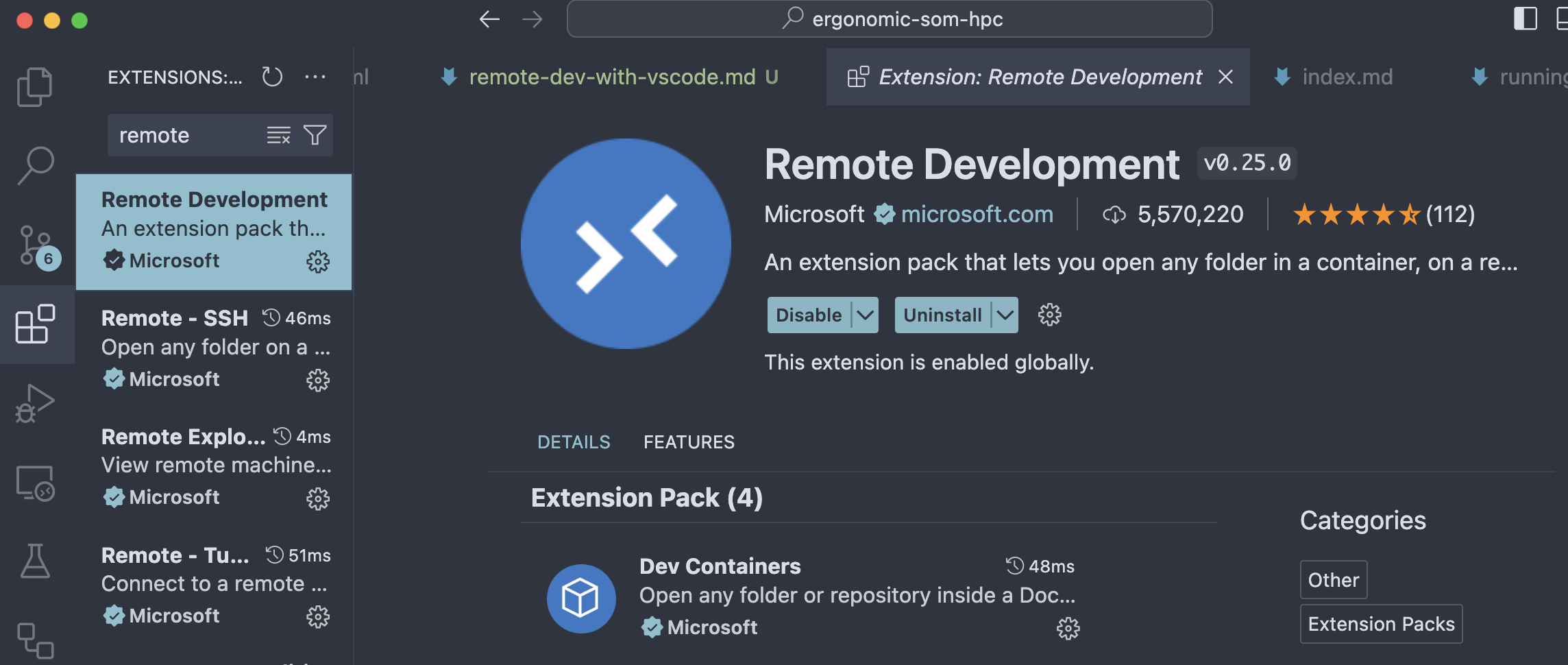
Visual Studio Code has a feature called "remote development" that allows you to edit code on a remote machine. This is super useful when you're working on the HPC. To get started, install the necessary extension as described in the official documentation.
Connecting to the HPC
Once you have the extension installed, you can connect to the HPC
to edit your code over SSH. You'll notice that there's now a small
box with icons >< in the lower left corner of the VSCode window.
(Your colors maybe be different due to your VSCode theme.)
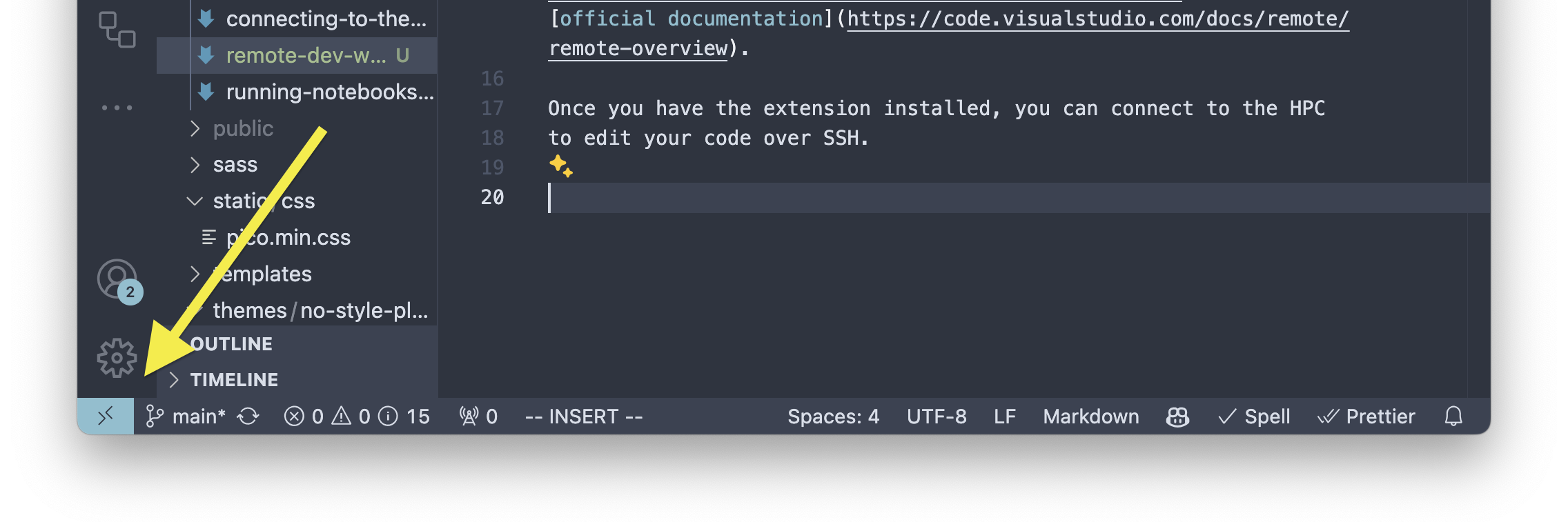
Click on that box and you'll see a menu with options to connect to various things.
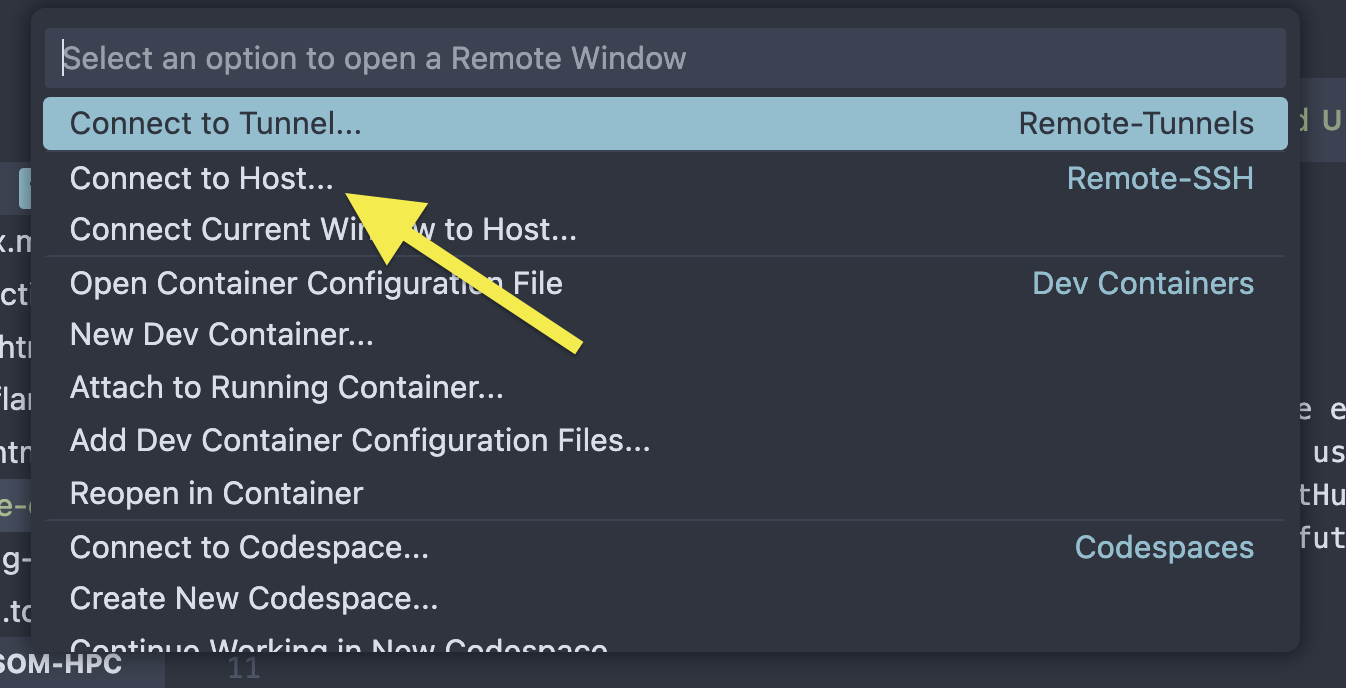
Click on "connect to host" and you'll get a list of hosts including
some you've connected to before and some from your SSH config file.
You also have the option to enter a new host. If you don't see the
HPC on there, you can enter yournetid@hpc-sms.som.yale.edu where
(obviously) yournetid is your netid.
Then you'll get a new editor window that is connected to the HPC.
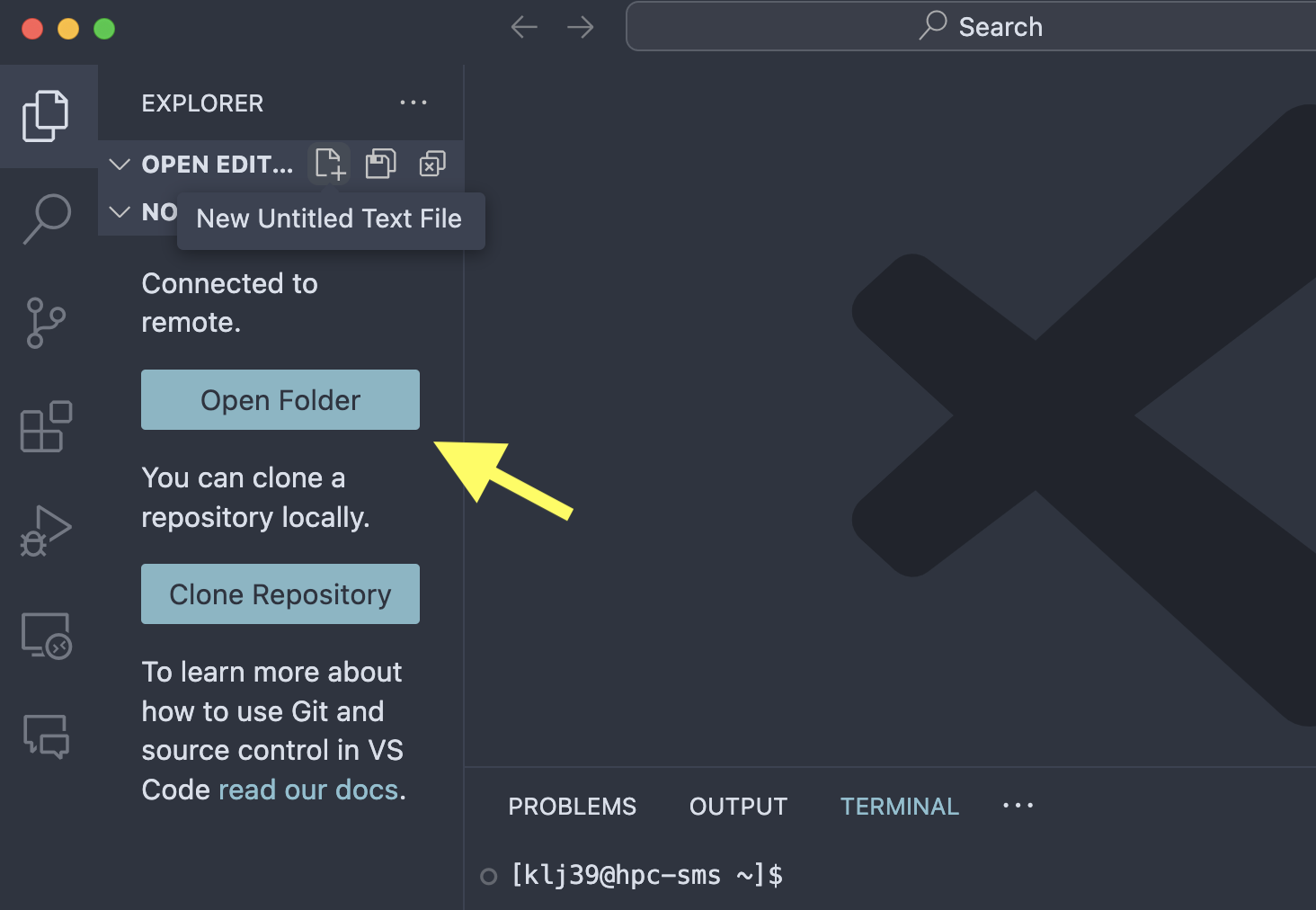
Click on "Open Folder" and navigate to the directory where your code is. You can now edit your code as if it were on your local machine. When you save, the changes are saved on the HPC!
Now you might rightly ask questions like "is this code editor picking up my python/r/whatever environment?" and the answer is mostly "yes" and that it is configurable. But, I'm not going to describe that here.
Notes on restarting VSCode or switching networks
If you restart VSCode or switch networks, it's likely that VSCode will lose it's connection to the HPC, but you don't lose any saved work (nor, likely, unsaved work). VSCode will attempt to reconnect to the HPC when you open the editor window again. Sometimes it will fail, for example if you took your laptop home and you're off the VPN. In that case, just keep VSCode open, reconnect to the VPN, and then let VSCode retry. I have never lost work.
Making this easier
When you install VSCode on your laptop/host machine, you get a
terminal command called code. You can use this to open a folder
in VSCode from the command line. You can also use it to open
a remote folder.
For example, I have scripts that save me time like the following:
#!/bin/sh
code --remote ssh-remote+klj39@hpc-sms.som.yale.edu \
    /gpfs/home/klj39/ai-ethics-project
This opens my ai-ethics-project directory on the HPC in VSCode. I saved
that script to a file called code-ai-ethics-hpc.sh and made it executable
with chmod +x code-ai-ethics-hpc.sh. Now I can just type ./code-ai-ethics-hpc.sh
and I'm editing my code on the HPC.
Further directions
VSCode is pretty nice and I highly recommend you give it a whirl. Here's a few links to get you started
- Awesome VSCode; Valerii Iatsko.
- Remote Development with VSCode (SSH); Susan B.