Tmux is a terminal multiplexer. It allows you to create multiple terminal sessions in a single window.
This is most useful for two reasons:
- You can keep your HPC shell sessions running even if you disconnect from the HPC. E.g. you can be noodling around on your desktop at Evans, then pick up right where you left off on your laptop at home.
- You can easily monitor long-running processes. E.g. you can have a terminal session running a big web scraping job and return to it to check on progress easily.
Tmux is installed on almost any Unix-like system you'll use for research
computing. It's useful! If you don't see tmux, you might see screen, which is similar.
Getting started
Let's start a named tmux session. First, SSH into the HPC. Then, type tmux new -s lunch. This will start a new tmux session named lunch.
You should see a bar at the bottom of your terminal window. This is the tmux status bar. It usually shows you the name of the session, the time, and the hostname of the machine you're on. You can configure it.
Ok, now type echo hello there. Then, let's detach with tmux detach. You should be back at your normal shell prompt.
Now let's list our sessions. Type tmux list-sessions. You should see your lunch session. I see the following
[klj39@hpc-sms ~]$ tmux list-sessions
0: 3 windows (created Fri May 17 16:32:24 2024) [162x42]
2: 1 windows (created Tue May 28 06:41:45 2024) [162x42]
lunch: 1 windows (created Tue May 28 06:45:48 2024) [162x42]
Now, let's reattach to the lunch session. Type tmux attach -t lunch. You should see your hello there message. Isn't that cool? Notice how your work was right there waiting for you, not lost.
Adding windows
In tmux
- Sessions have windows
- Windows have panes
- Panes have some kind of process running in them, like a shell
Let's add a window. To do so, I should to introduce you to the tmux "prefix key". By default, this is Ctrl-b. When you type Ctrl-b, you're telling tmux "I'm about to give you a command".
Let's make a new window. Type Ctrl-b c. That means, first type Ctrl-b, then type c. You should see a new window. You can switch between windows with Ctrl-b n and Ctrl-b p for next and previous, respectively.
These windows are like different "desktops" in a way. You can have different things running in each one.
(You don't have to use the prefix key. We could also have typed tmux new-window. Most people use the prefix key. I prefer the commands.)
Splitting panes
You can also split panes. Let's split the current pane vertically. Type Ctrl-b %. You should see a new pane to the right of the current one. You can switch between panes with Ctrl-b o.
Let's split one of those vertically. Type Ctrl-b ". You should see a new pane below the current one. You can switch between panes with Ctrl-b o. Your terminal should look like this:
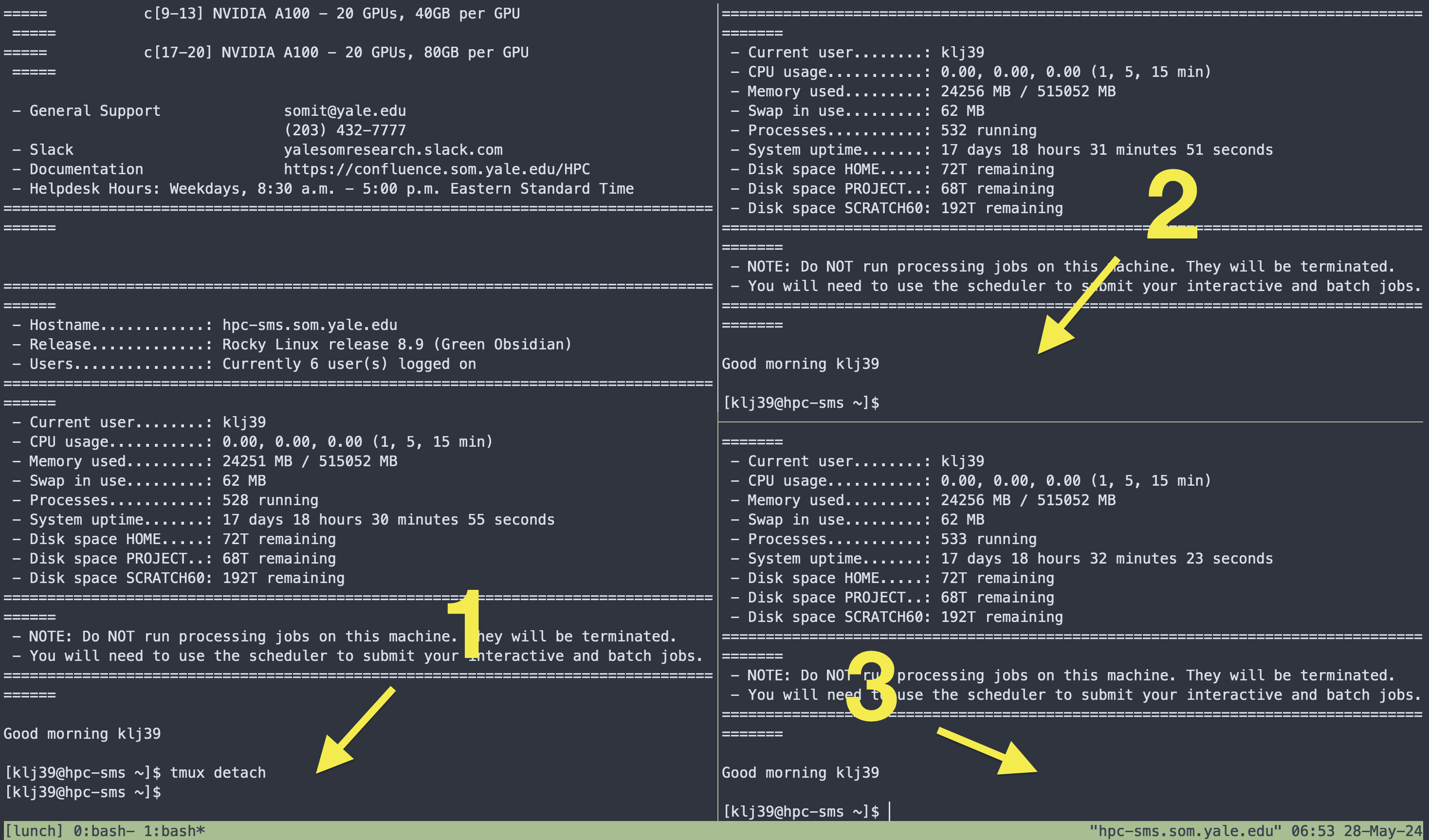
You can also create splits with commands instead of key combinations. For example, tmux split-window -h will split the current pane horizontally and tmux split-window -v will split it vertically. Each creates a new pane.
Let's close a pane with tmux kill-pane. You can also close a window with tmux kill-window.
From any pane, you can detach from the session with tmux detach. This can also be
accomplished with with a key combination like Ctrl-b d, but I prefer to type the command
personally.
Further directions
There's a lot more you can do with tmux including
- customizing the status bar
- creating custom key bindings
- resizing and moving panes
- renaming windows and sessions
- copying and pasting from the pane buffers
Most LLMs will be able to help you with those things. Also, you can find a ton of human-written content about tmux on the internet. Here's a few links I thought you might find useful. The first one is surely useful...the others seem decent to me.
- Awesome Tmux. List of helpful tmux links for various tutorials, plugins, and configuration settings. Justin Garrison.
- Tmux Tutorial for Beginners ; Igor Irianto.
- Tmux From Scratch To BEAST MODE; DevOps Toolbox.